Chat and creation
Local repaint versus visible annotation
Specify an area for AI to modify rather than treat the marking as final image content.
On this page
Mark an area and generate
- Open preview editing or local repaint on the relevant generation reference image.
- Mark an area with the available brush, rectangle, or ellipse. Follow the current model's region limit.
- Describe what should replace or change in the area. A marking alone does not explain the desired modification.
- Close the enlarged image to return. Finished drawing stays in this generation draft, without a separate local-repaint Apply button. Confirm prompt and settings and submit generation.
Draft scope and model effects
The same original in different inputs or slots has independent edits. Check which input owns your current edit before replacing it.
Undo, redo, and reset apply to this drawing. Reset can itself be undone in the current editor; unsent history is not guaranteed after refresh.
Models handle marked regions differently. Do not assume every model preserves outside pixels exactly; inspect the result.
Change this area versus draw this arrow
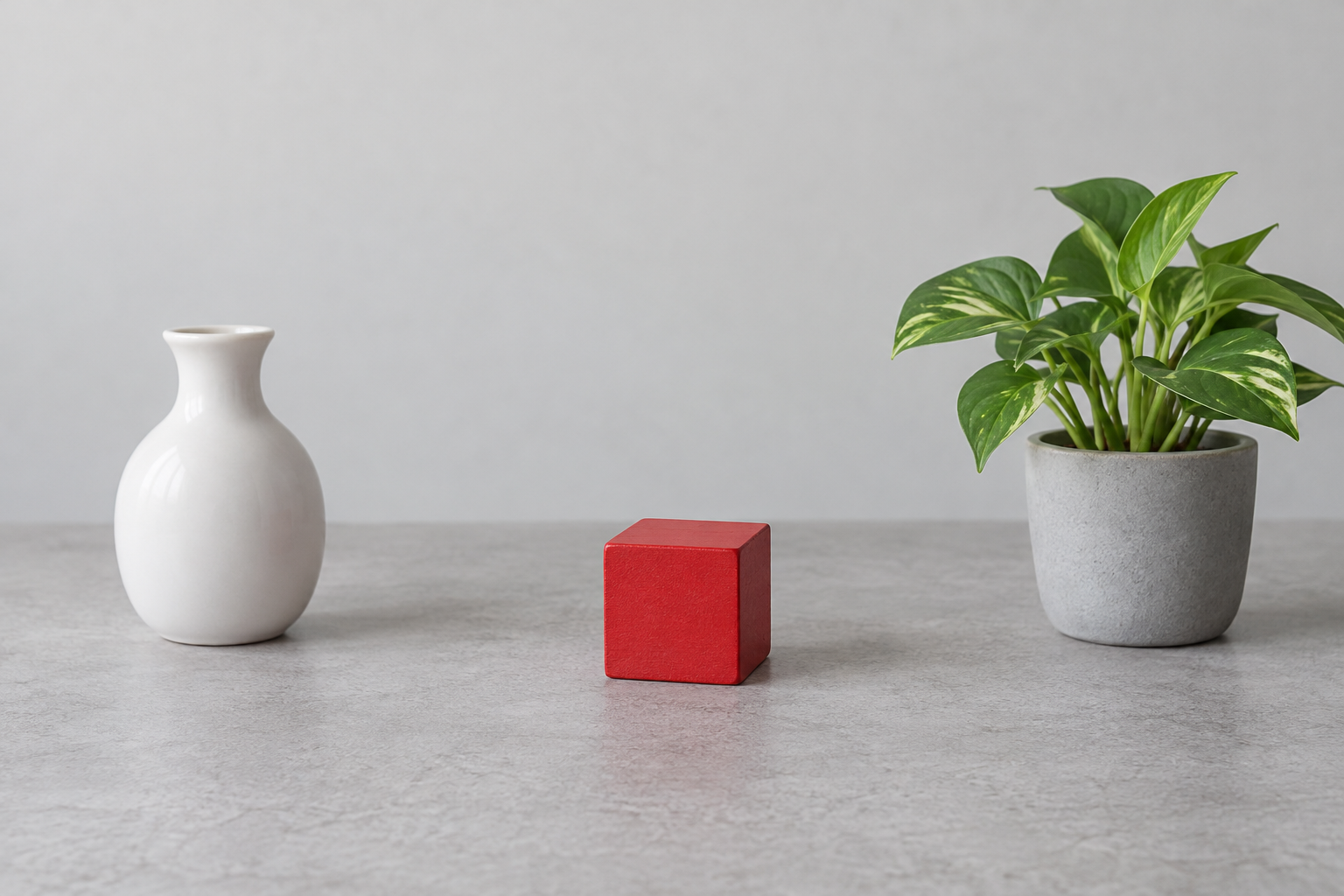
Mark the red cube and request a blue sphere. The marking indicates intended editing.
Draw an arrow. Applying annotation makes it part of a new image.